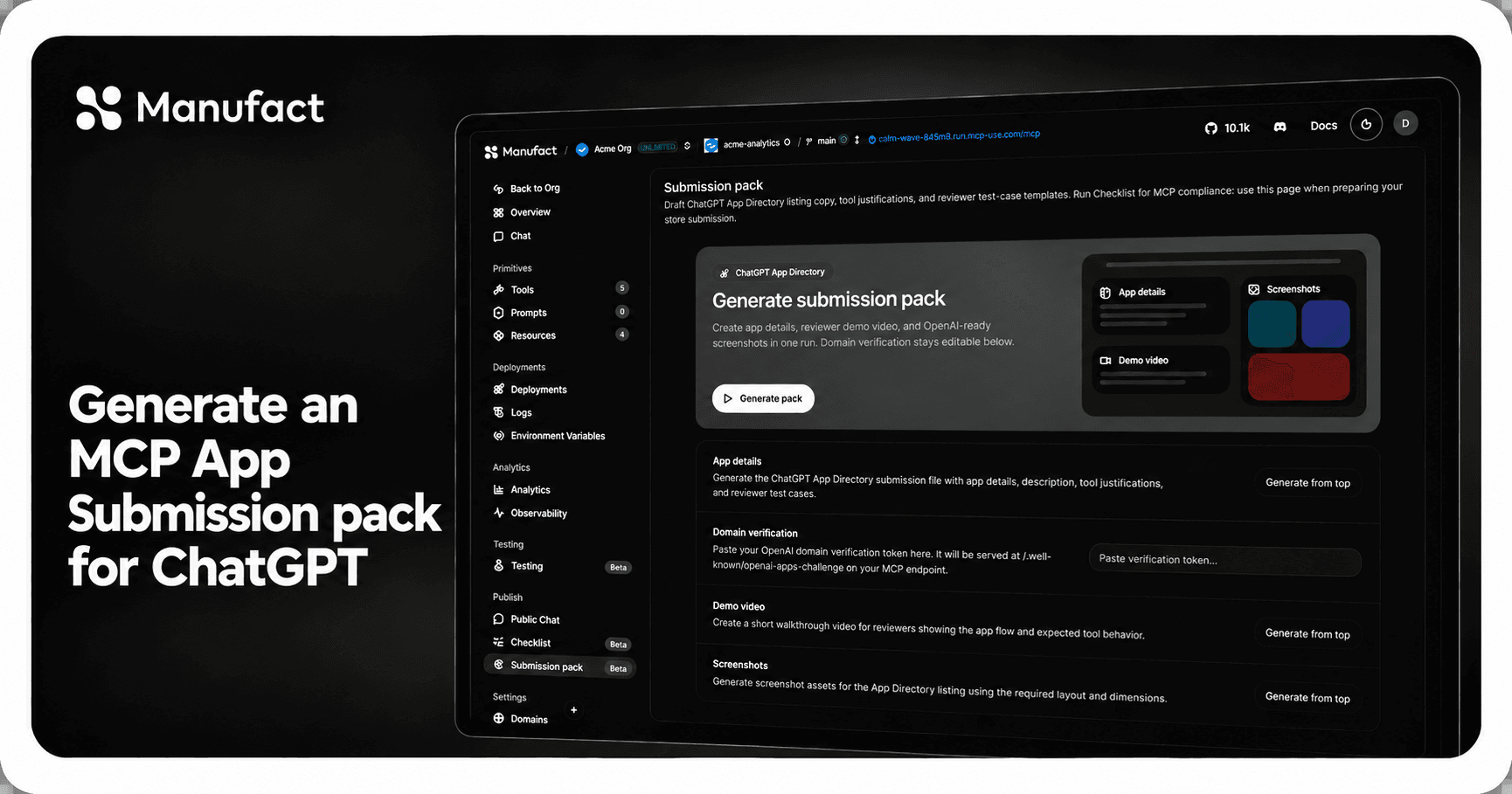
To generate an MCP App submission pack for ChatGPT, connect your MCP app to Manufact, open Publish → Submission pack, and click Generate pack. Manufact reads the live server and generates listing copy, tool justifications, and reviewer test cases. It can also generate the screenshots and demo video. Review the materials in the editor, complete the required details and assets, and click Download ZIP to export your submission.
You can generate a pack in Manufact for a server hosted on Manufact or connected by URL. For the remaining OpenAI steps, use our submission guide and check OpenAI's current requirements.
Check the live app before generating
Start with the deployed MCP endpoint that reviewers will reach. In Manufact Cloud, open the server and run its publish checks. Resolve failures in protocol behavior, tool metadata, security, or app resources by copying the fix prompt. Ensure resolution before writing listing copy around them. The PredictLeads story shows why finding schema and response issues before review matters.
Next, run the app's core task in the clients you support. Manufact's test suites can check expected tool calls and outcomes across clients. The generated materials should describe a flow reviewers can actually complete.
If the server uses OAuth, verify the dashboard has a suitable test connection. Manufact uses that connection for inspection, test suites, and authenticated publish checks. Its dashboard OAuth guide recommends a dedicated account with representative sample data and limited permissions.
Click Generate pack in Manufact
Open your server in the Manufact dashboard. Go to Publish → Submission pack and click Generate pack. You do not need to write the listing or assemble reviewer cases from scratch. Manufact drafts them from the tools and capabilities exposed by your live server. The feature works for Manufact-hosted and URL-connected servers. It is available on every current plan. Each submission pack generation costs $5 from your monthly usage allowance. See current pricing for allowances and usage rates, and the submission pack guide for the steps.
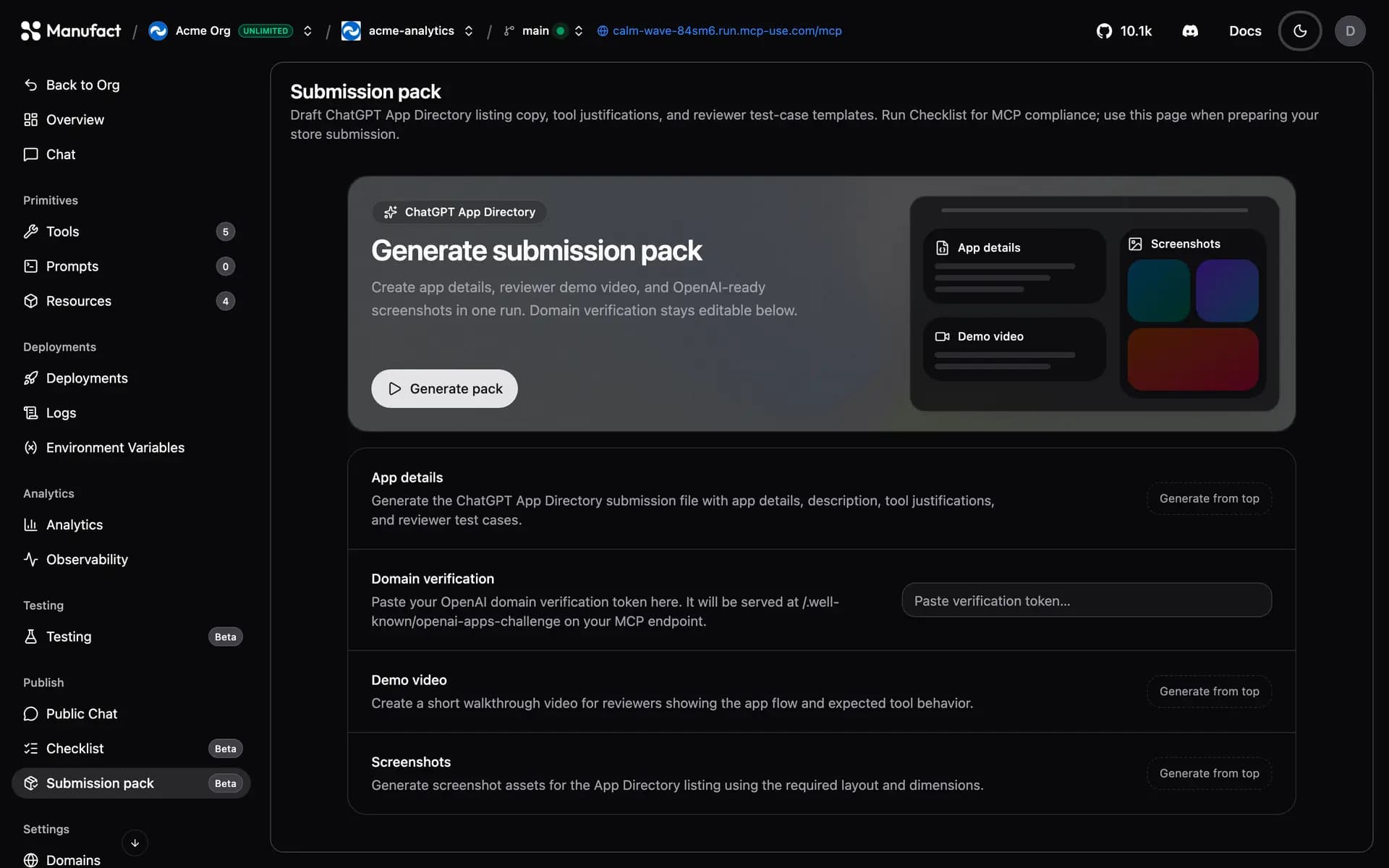
The generated pack includes:
| Asset | What Manufact generates |
|---|---|
| Directory listing copy | A name, descriptions, and category based on the server. |
| Tool justifications | Draft explanations of why each tool needs the access it requests. |
| Reviewer test cases | Prompts and expected outcomes that show reviewers how to exercise the app. |
Review the output for accuracy and adjust the wording in the editor to match your product. If the draft describes an outdated tool, update the server and regenerate the pack so the materials match what reviewers will see.
Generate screenshots and a demo video in the same pack
Use Manufact's Submission pack to generate the screenshots and demo video too. You can select up to four tools for screenshots, or let Manufact choose representative tools. Add a custom instruction if you want the visuals to show a specific journey, such as a search, booking, or checkout flow. Manufact generates the assets from the app; screenshot progress appears in the dashboard as each result is ready.
Open the generated images and video. If they show the wrong tool or miss the app's useful state, change the tool selection or custom instructions and generate them again in Manufact. Check the final assets against the destination directory's current requirements before uploading them. The Submission pack docs show the available controls for screenshots and video.
Review the details and download your ZIP
Complete the listing and reviewer details in the editor. Check the MCP URL, descriptions, category, website, support page, privacy policy, and terms links. Review the generated test cases, add release notes and publication settings, and upload your logo and any additional image assets.
Resolve missing or invalid details, then click Download ZIP. Manufact exports plugin.json, mcp.json, and the image assets added to the package. Your review details and demo video link are included in the package; this does not mean OpenAI has reviewed or approved them.
Upload the ZIP through OpenAI's submission workflow. Resolve its package checks, connect and verify the MCP server, and check the imported review details. Enter reviewer sign-in credentials separately in OpenAI when required.
Do a final reviewer pass
Give the materials to a teammate who has not built the app. Ask them to follow a test case using only the supplied instructions and test account. Watch for missing setup steps, permissions the account lacks, or an expected result that is too vague to verify.
Then compare the generated listing, tool justifications, screenshots, and video with the live app one more time. Make sure privacy and terms links resolve, the described actions match the current tools, and the demo follows a path a reviewer can reproduce. The ChatGPT submission guide covers the remaining submission fields and blockers.
Need help with your server submission?
Book time with us. We'll review your server, help you run the submission checks, and work through the generated pack before you submit.
FAQ
Do I need to host the MCP server on Manufact to generate a pack?
No. The Submission pack documentation says it works for Manufact-hosted servers and external servers connected by URL.
Does generating a pack submit the app to ChatGPT?
No. Manufact generates the materials and exports a ZIP. You review it, upload it to OpenAI, and complete OpenAI's verification and review process. Generating or downloading a pack does not submit or publish it.
Should I generate the pack before running publish checks?
Run publish checks and client tests first. Fixing the live server after generating assets can leave the listing, test cases, and screenshots describing an older version.
When your server passes its checks and the core journey works in the target client, generate the whole pack in Manufact. Review the copy, screenshots, video, and test cases, download the ZIP, then submit it through OpenAI's workflow.